
Learn how to use the observation scheduling feature of our evaluation system.
Please make sure youtube is whitelisted to view the video.
Direct link to video: https://youtu.be/ShgZuYvNRtI
The Observation Schedule feature of the RightPath™ Student Success System allows you to schedule and start observations easily and effectively.
Accessing the Observation Schedule
To access the Observation Schedule:
1. Hover over the APPR tab on the on the RightPath™ black menu bar.
2. Select "Observation Schedule".

Features of the Observation Schedule
The Observation Schedule allows you to do the following:
Schedule a new observation
Start a scheduled observation
Edit an existing observation
Delete a scheduled observation
Edit a scheduled observation
Export scheduled observations to the calendar on your email client
Let’s spend some time discussing each of these capabilities.
Parts of the Observation Schedule
Once you arrive at the Observation Schedule, you will see a calendar that is defaulted to the current week. Any scheduled observations for the current month will appear within the calendar. You can also choose to change the view of your calendar to a day, week, or month view. These appointments are colorcoded to reflect the various types of observations. In addition, any scheduled appointments that occur today or tomorrow will appear under the Upcoming heading.

Scheduling a New Observation
To schedule a new observation using the Observation Schedule, you will:
1. Click on the date on which you would like to schedule the observation.
2. A pop up box will open to schedule a new observation.

At this point, you will be able to schedule your observation. You will need to complete the following:
At this point, your observation is scheduled and will now appear on the calendar on the Observation Schedule. If this is an announced observation, the teacher will receive an email in their RightPath email account. If this is for an unannounced observation, no email will be sent.
Start a Scheduled Observation
To start a scheduled observation:
1. Click on the scheduled observation on the Observation Schedule to begin the observation.
2. Select Start observation.
3. This will bring you directly to the Observation for to start the observation.

Edit an Existing Observation
To edit an observation that has already been started but has not yet been sent to the observed individual:
1. Click on the scheduled observation on the Observation Schedule.
2. Select Edit Observation.

Once the page refreshes, you will be brought to the observation. At this point, you can make any changes to the observation before sending it to the individual.
Delete a Scheduled Observation

Before the appointment is deleted, you will need to confirm that you want to delete it. By clicking the "OK" button, it will be deleted.
Edit a Scheduled Observation
To make a change to a scheduled observation that has not yet been started:
1. Right-click on the scheduled observation on the Observation Schedule.
2. Select Delete Appointment.

Exporting RightPath Scheduled Observations to Google Calendar
RightPath makes it easy to export scheduled observations to your Google Calendar.
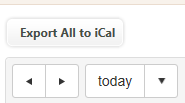
From the Observation Schedule, select the staff calendar you would like to export under “Viewing Schedule for,” then click “Export All to iCal.”
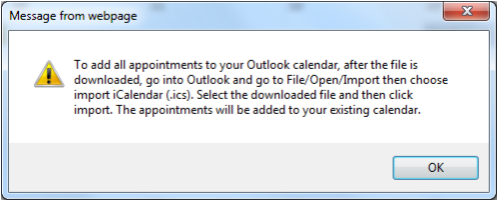
A prompt will appear with instructions for importing the events. Click “OK” to download the .ics file to your computer.
Importing an iCalendar (.ics) File into Google Calendar
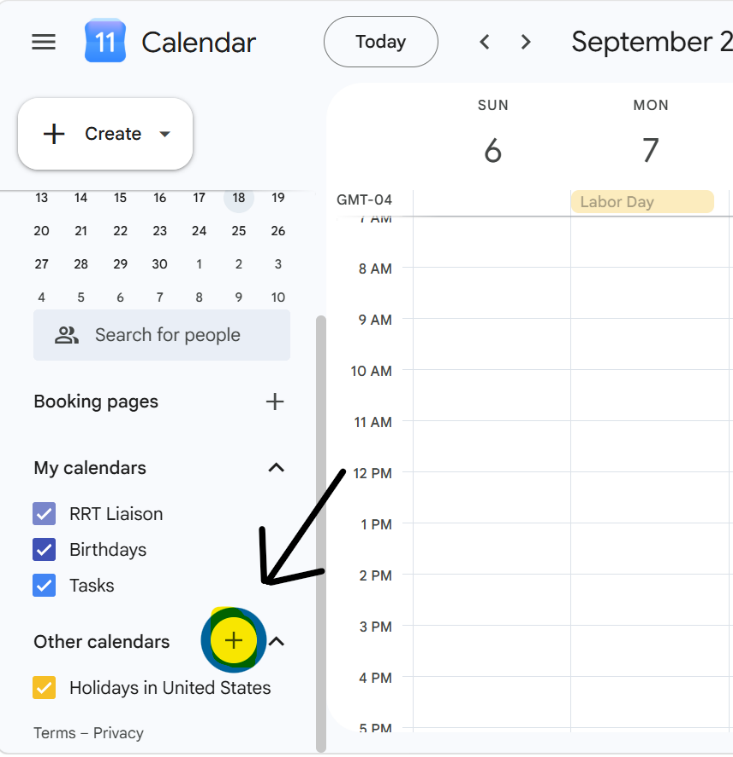
Click the + sign next to “Other calendars,” then click “Create new calendar.”
Give your new calendar a name, such as “Observations,” and click “Create calendar.”
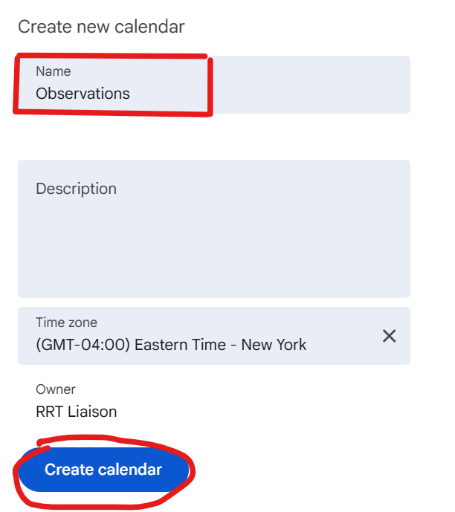
Once the calendar has been created, click “Import & export.” This is where you will import the .ics file downloaded from RightPath.
Tip: Using a dedicated calendar for RightPath observations keeps these events organized separately from your other Google Calendar events and lets you show or hide the entire observation schedule whenever needed.
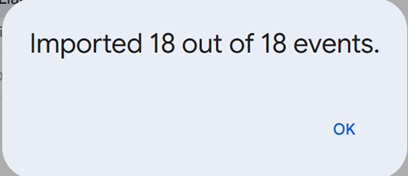
Select the .ics file you downloaded from RightPath. Under “Add to calendar,” select the new calendar you created, then click “Import.”
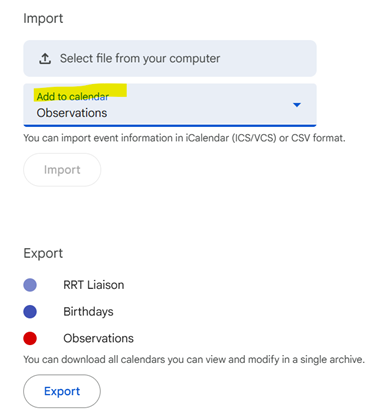
Once the import is complete, Google Calendar will confirm how many events were successfully added.
Return to your main Google Calendar. Your new observation calendar will appear under “My calendars.” Select the calendar to show your observation events, or deselect it to hide them.
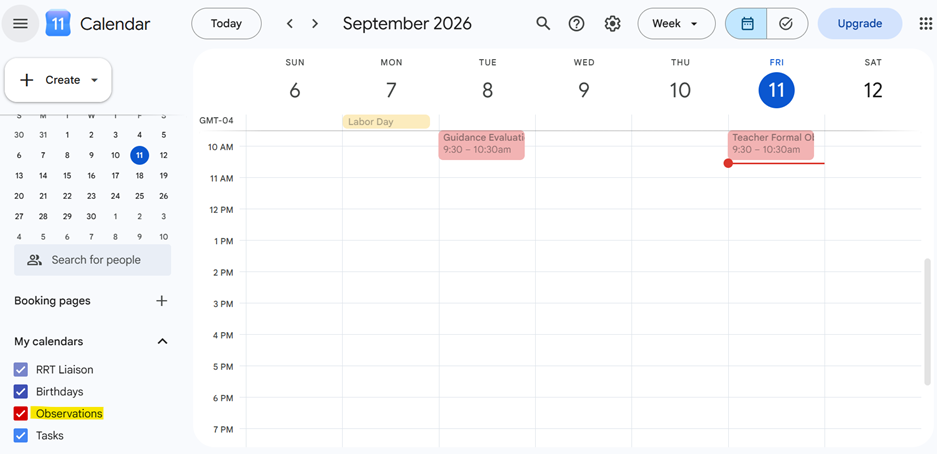
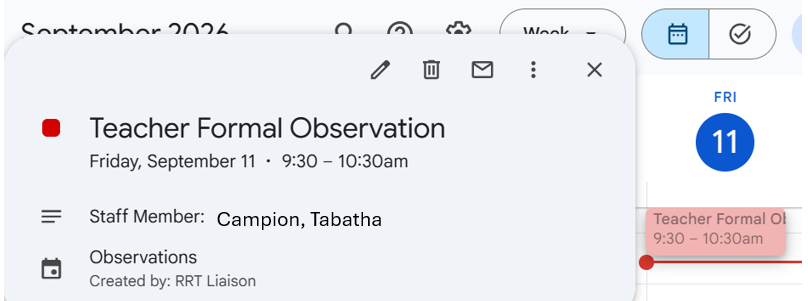
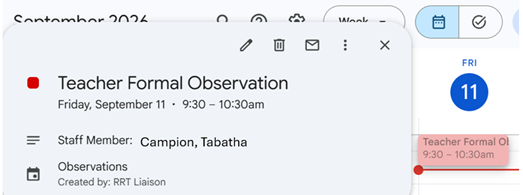
Click an observation event to view its details, including the name of the staff member.
Keeping Your Google Calendar Up to Date
As new observations are scheduled, simply repeat the export and import process. Each new iCal download will add newly scheduled events, helping prevent duplicate events from being added to your calendar.
A helpful note about schedule changes: The current iCal process is designed to transfer new events rather than continuously synchronize changes between RightPath and Google Calendar. If an existing observation is rescheduled, edited, or deleted in RightPath, remember to make the corresponding change in Google Calendar as well.
Our technology team is exploring options for an enhanced Google Calendar integration with automatic synchronization. Until then, this process provides a convenient way to keep your RightPath observation schedule accessible in Google Calendar.